










Function canceled
Function canceled


 Lyngsat
Kingofsat
Dishpointer
DVBSkystar.com
satbeams.com
CS Sat fórrum
Parabola
DVB-Upload
DVB N Forum
dvhk.pl
sat-television
Sat Centrum
SkyStar.org
TV Freak
Technisat
techneteuweb
Jak psat web
Jak na web
Zive.cz
Interval
O webu
Webguru
Builder.cz
Linuxsoft.cz
Tutorials.cz
web.net-mag.cz
Kosek.cz
webtvorba.cz
CSS Creator
samples.cz
programujte.com
builder.cz
časopis.programátor
učebnica c++
Odkiaľ je IP
Uč sa Anglicky
Speedtest
Otestujte sa
Lyngsat
Kingofsat
Dishpointer
DVBSkystar.com
satbeams.com
CS Sat fórrum
Parabola
DVB-Upload
DVB N Forum
dvhk.pl
sat-television
Sat Centrum
SkyStar.org
TV Freak
Technisat
techneteuweb
Jak psat web
Jak na web
Zive.cz
Interval
O webu
Webguru
Builder.cz
Linuxsoft.cz
Tutorials.cz
web.net-mag.cz
Kosek.cz
webtvorba.cz
CSS Creator
samples.cz
programujte.com
builder.cz
časopis.programátor
učebnica c++
Odkiaľ je IP
Uč sa Anglicky
Speedtest
Otestujte sa

IP DVB Streamreader
IP DVB Streamreader is a great piece of software for offline data downloading via satellite. I will not describe the installation of this program because it is very simple. In this article I will talk only about the program settings.

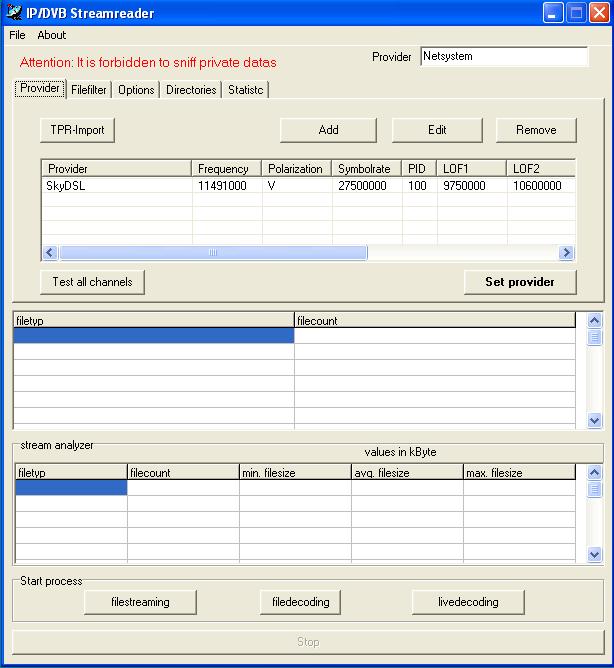
The program was installed into c:/Program Files/Streamreader and we start it using Dsr.exe. It is better to place the icon somewhere on the desktop or in the quick launch bar, as I do. The configuration is nothing complicated — even an 8‑year‑old child could handle it. The TPR‑Import button is used for importing providers if we have a .tpr file with preconfigured providers. The next three buttons are used for “Add”, “Edit”, and “Remove” — adding, editing, and deleting providers, which I will talk about shortly.

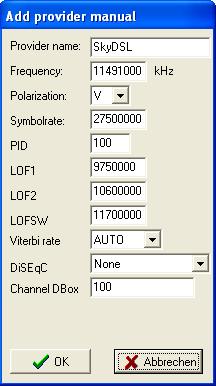
Provider name: enter the provider name, for example SkyDSL. Then enter frequency, polarization, symbol rate, and PID — you can find these in the list for which I will provide a link here. Save the parameters with OK. Edit — editing, is obvious, and Remove as well. That would be all for this first tab. I also noticed a button “test all channels”, but I have never tried it.
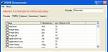
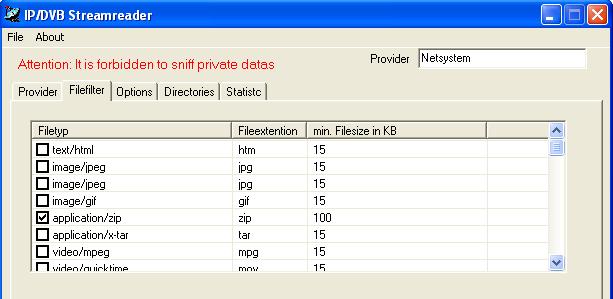
The Filefilter tab determines which files will be saved to the disk. If I counted correctly, there are 48 types (sometimes less is better than more). I have only zip, two exe types, and mp3 enabled. By double‑clicking a file type you can set the minimum file size (i.e., if you set it to 1000, the smallest file will be 1 MB; the upper limit does not exist — you can easily receive a 3 GB file; the largest I ever caught was 720 MB).
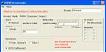
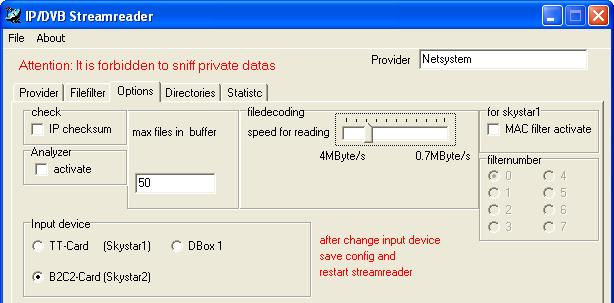
We continue with the Options tab. The buffer setting can be left at 50 — this number indicates the maximum number of temporary files (the more there are, the slower the downloading). Next, we can set the speed and input device to B2C2. On the right side there are some settings for the SS1 card — I never owned this card, so it does not concern me.
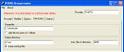
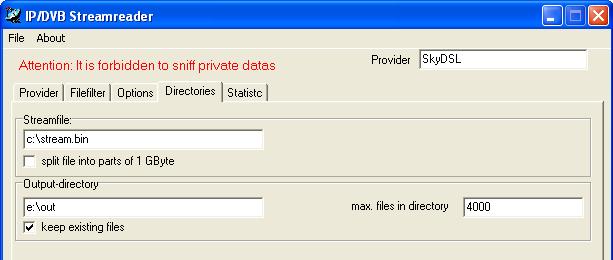
Directories: Output directories — this must be set, otherwise the data will have nowhere to be saved. Set for example e:/out (depending on where you have the most free space on your HDD), and of course you must create the “out” directory on the E drive. There is also an option to set the maximum number of files in a directory. I have 4000 (when, for example, the exe directory fills with 4000 files, a new directory exe1 is automatically created and downloading continues).
Now that everything is configured, we must save it — click File in the top menu and choose Save config. If we forget this and close the program, we would have to repeat all the settings.
Now click the Provider tab, choose SkyDSL (of course we must be tuned to the satellite Telecom 2D at 8W where this service is located, and we must have Server4PC running — that small satellite icon in the tray). The satellite icon in the tray will turn green (if not, something is wrong — either the parameters or the satellite position). Then click Livedecoding. Now the data should start flowing to us.

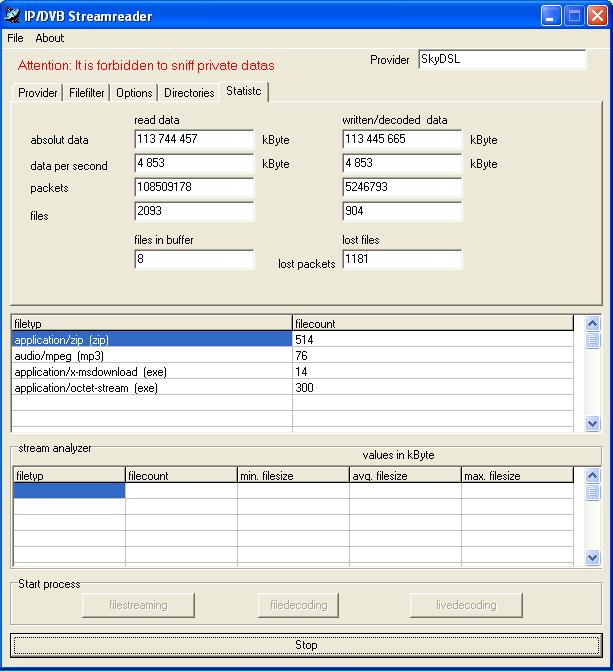
The result is what you see in the picture. This service offers speeds up to 4500 Kb/s. The first line shows all data that has been read and written. The second line shows the current transfer speed. The third line shows the number of packets. The line named “file” shows the number of files that started transferring and in the second column (same line) the number that were successfully saved to disk. The last line shows the current number of files in the buffer and lost files — these are lost files. The Stop button ends the transfer.