










Function canceled
Function canceled


 Lyngsat
Kingofsat
Dishpointer
DVBSkystar.com
satbeams.com
CS Sat fórrum
Parabola
DVB-Upload
DVB N Forum
dvhk.pl
sat-television
Sat Centrum
SkyStar.org
TV Freak
Technisat
techneteuweb
Jak psat web
Jak na web
Zive.cz
Interval
O webu
Webguru
Builder.cz
Linuxsoft.cz
Tutorials.cz
web.net-mag.cz
Kosek.cz
webtvorba.cz
CSS Creator
samples.cz
programujte.com
builder.cz
časopis.programátor
učebnica c++
Odkiaľ je IP
Uč sa Anglicky
Speedtest
Otestujte sa
Lyngsat
Kingofsat
Dishpointer
DVBSkystar.com
satbeams.com
CS Sat fórrum
Parabola
DVB-Upload
DVB N Forum
dvhk.pl
sat-television
Sat Centrum
SkyStar.org
TV Freak
Technisat
techneteuweb
Jak psat web
Jak na web
Zive.cz
Interval
O webu
Webguru
Builder.cz
Linuxsoft.cz
Tutorials.cz
web.net-mag.cz
Kosek.cz
webtvorba.cz
CSS Creator
samples.cz
programujte.com
builder.cz
časopis.programátor
učebnica c++
Odkiaľ je IP
Uč sa Anglicky
Speedtest
Otestujte sa

SkyNet
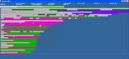
SkyNet is used for offline data downloading via satellite. Older versions were used as a module
for the DVB player ProgDVB, but newer versions already work independently. There are several
providers on different satellites, but probably the best — though less known — is SkyDSL on the
Telecom 2D satellite at 8° West. Other providers are for example: Alice, HSI on Astra 19,
EON, OpenSky, Netstream on Eutelsat 7E, something on Sirius, etc…
I last experimented with SkyNet version 085.7. I won’t go into too much detail here; I will only
describe how to start it.
Make sure you are tuned to some satellite, for example Eutelsat W3A 7E (I also forgot to mention
that the downloaded zip only needs to be unpacked into a directory, e.g. c:/SkyNet). Open that
directory and you will see a few files. We are interested in the file SKYNET.INI — open it with F4
and scroll all the way down. There you will find the lines:
# Set your location for download.
[disk]
min_free_space = 100M
disk=e:\
dir_temp=e:\SS2 Data\Temp
dir_ok=e:\SS2 Data\OK
Either set it exactly as shown here — meaning create the directory SS2 Data and inside it create
the subdirectories Temp and OK — or configure it according to your own setup. Don’t forget the
drive letter. Without this, the data will have nowhere to be saved.
Then in the SkyNet directory click on the file EdNet.exe.
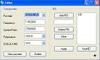
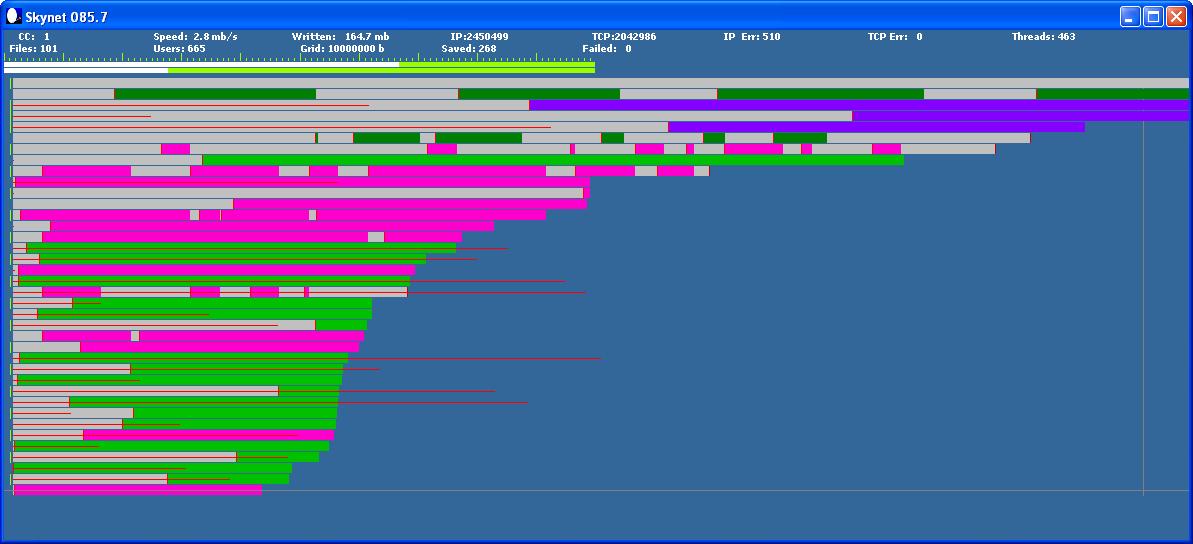
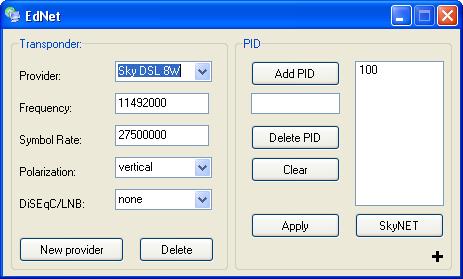
A window opens (see image). We can see that some providers are already preconfigured (of course, new providers can be added, but I think the best ones are already included). So choose for example EON 7E and confirm with the SkyNet button. The program will start and data should slowly begin saving to the hard drive (see image above). The window shows basic information: number of connected users, speed, written data, saved files, etc… The program is controlled using keyboard shortcuts, but I will write about that next time when I have more time. You can download it in the download section.