










Function canceled
Function canceled


 Lyngsat
Kingofsat
Dishpointer
DVBSkystar.com
satbeams.com
CS Sat fórrum
Parabola
DVB-Upload
DVB N Forum
dvhk.pl
sat-television
Sat Centrum
SkyStar.org
TV Freak
Technisat
techneteuweb
Jak psat web
Jak na web
Zive.cz
Interval
O webu
Webguru
Builder.cz
Linuxsoft.cz
Tutorials.cz
web.net-mag.cz
Kosek.cz
webtvorba.cz
CSS Creator
samples.cz
programujte.com
builder.cz
časopis.programátor
učebnica c++
Odkiaľ je IP
Uč sa Anglicky
Speedtest
Otestujte sa
Lyngsat
Kingofsat
Dishpointer
DVBSkystar.com
satbeams.com
CS Sat fórrum
Parabola
DVB-Upload
DVB N Forum
dvhk.pl
sat-television
Sat Centrum
SkyStar.org
TV Freak
Technisat
techneteuweb
Jak psat web
Jak na web
Zive.cz
Interval
O webu
Webguru
Builder.cz
Linuxsoft.cz
Tutorials.cz
web.net-mag.cz
Kosek.cz
webtvorba.cz
CSS Creator
samples.cz
programujte.com
builder.cz
časopis.programátor
učebnica c++
Odkiaľ je IP
Uč sa Anglicky
Speedtest
Otestujte sa

Basic installation of myTheatre

MyTheatre is software used for watching digital satellite television and radio. However, this software is not free — it is shareware. The last free version is, I think, 2.75; newer versions must be purchased. Paid versions are limited to 30 days or 1 hour of viewing, after which they shut down. It is quite a good program, but not very widely used because there are better and free alternatives. Today I will install the new version 3.30 Full. I also have the Lite version, but that one is not Full.

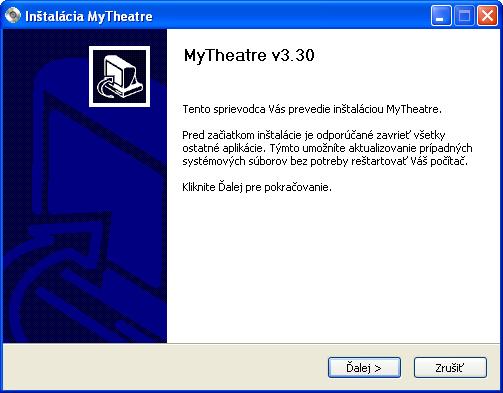
After double‑clicking the installation exe file, the installation wizard starts. There is nothing more to add — just one word: “Next >”.

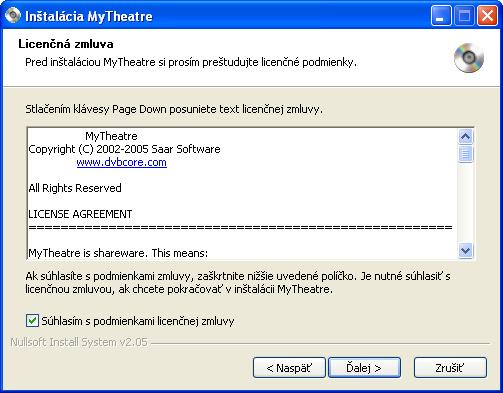
In the next window everyone should read the license agreement (it is in English, so probably very few people actually read it). If you agree with it, check the box “I accept the terms of the license agreement” and continue.

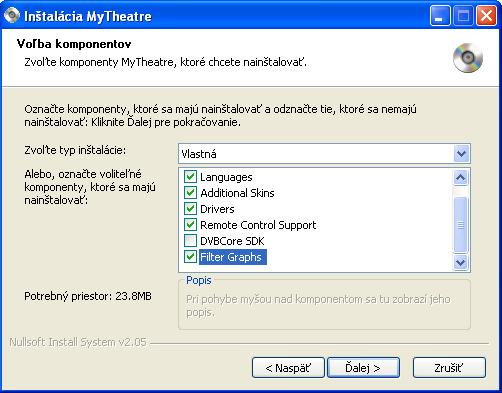
Component selection. There are more than enough languages — classic English, German, French, but also Chinese and Arabic, etc. Leave the other components checked, such as skins, drivers (if you haven’t installed them), and also check filter graphs. We can see that the program will take up almost 24 MB on the HDD, and when we add the channel list, it will be a few megabytes more.

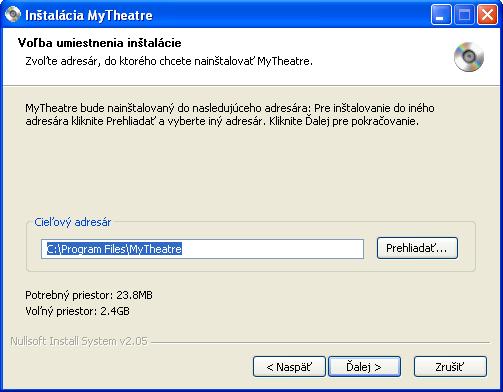
Again, the familiar window for selecting the destination directory. By default it is what you see in the picture (if you don’t see it, click the full image). My favorite path is always directly on drive C. And we continue with “Next >”.

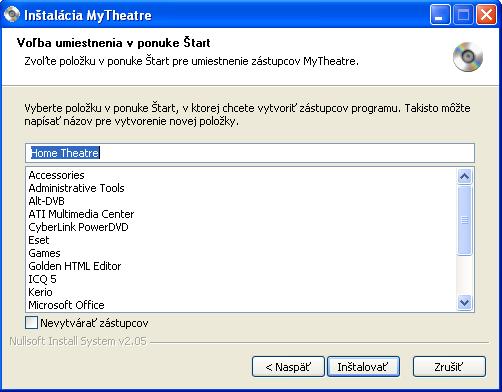
This window deals with creating a Start Menu shortcut. If you want it to appear under a different name than Home Theatre, type whatever you want. Or if you don’t want it in the Start Menu at all, check the box “Do not create shortcuts” and click Install.

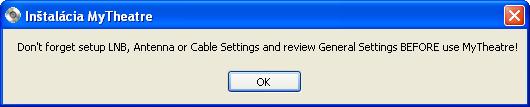
If only I knew what this message means — my English is not the best yet — but from my translation it could be something like: “It cannot remember the converter and antenna settings, and before using MyTheatre you should check the configuration.” (I hope I didn’t mess it up too much.)

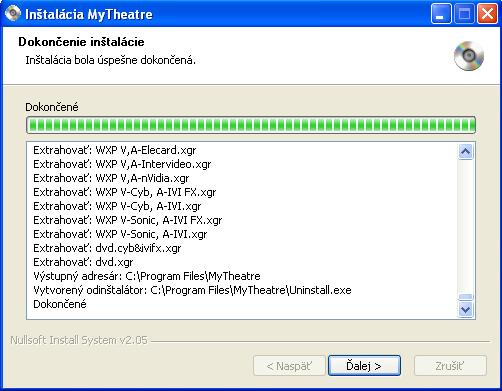
In the installation window we have a nice summary of everything that happened during the process, and nothing prevents us from clicking “Next”.


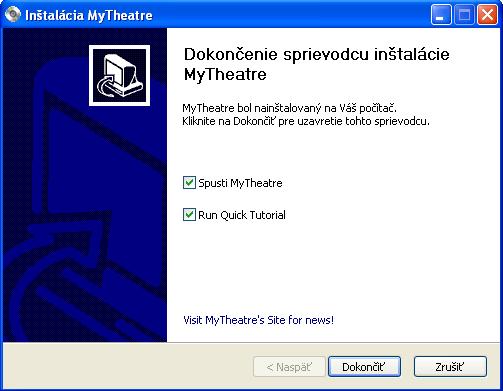
So, myTheatre was successfully installed, both boxes are checked. When we click Finish, the program itself will start along with the tutorial. If you don’t want the tutorial, uncheck the box (I admit I didn’t go through the tutorial because of my English).
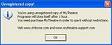
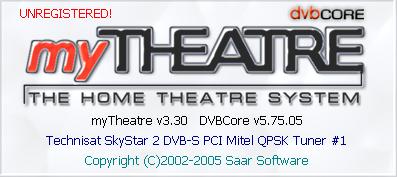
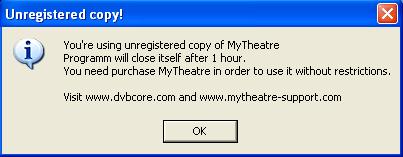
Before the program starts, a message appears saying that the program is not registered and will shut down after 1 hour. If we visit their website and purchase the product, we can use it without any limitations.

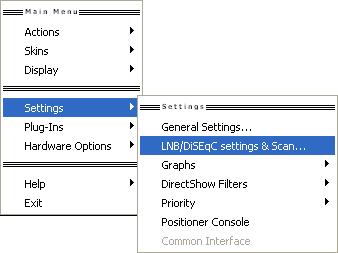
I don’t remember if earlier versions installed a channel list automatically, but this one does not. So right‑click and choose Settings → LNB/DiSEqC settings & scan.
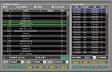

In this window we set the KU‑Lin band (bottom left corner), click for example on Hot Bird and then on the DiSEqC button where we choose LNB 1 and OK. Then confirm everything with Apply. In the same window move to the right side and select the TP you want to scan (Shift + Down Arrow). I selected only one for demonstration. You can click Scan. When the scanning finishes, close the window and in the channel list choose a program and start watching.
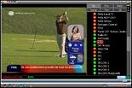
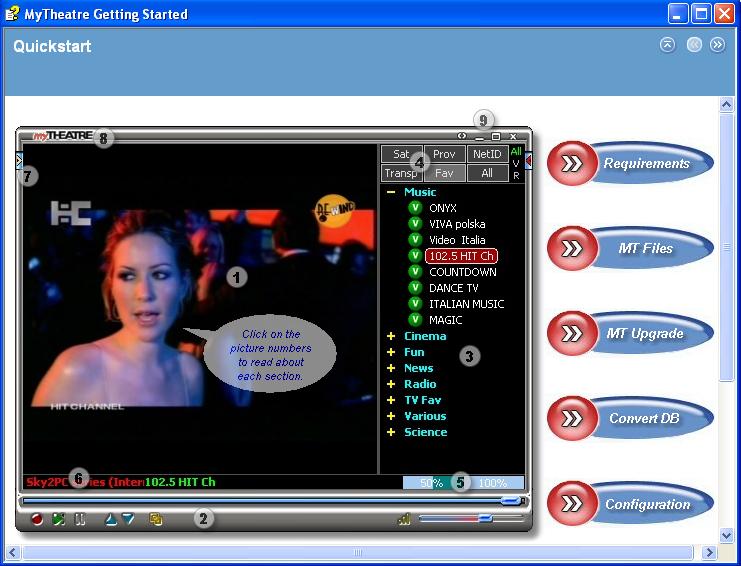
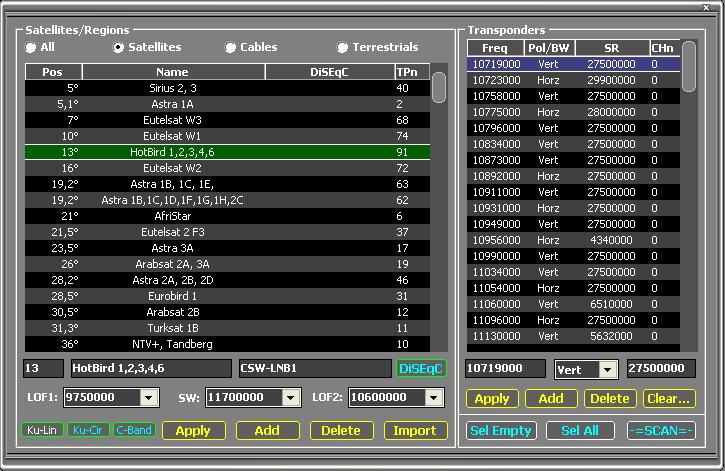
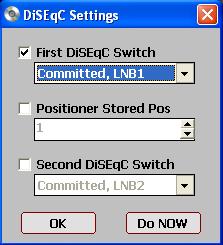
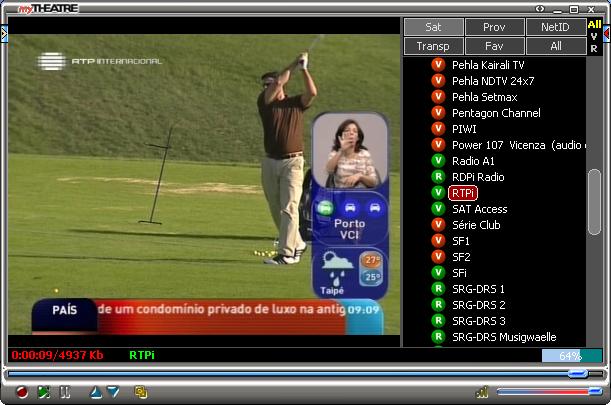
Here is the long‑awaited result. It should work for up to 1 hour, then the program shuts down. In older versions it was necessary to set the SS2 card in Settings. I personally almost never use this software. In the past I used it more often, today I don’t even have it installed. Although it can be compared to SkyView or DVBDream, if it were free, it would be more popular among SS2 users.
Official website: www.dvbcore.com