










Function canceled
Function canceled


 Lyngsat
Kingofsat
Dishpointer
DVBSkystar.com
satbeams.com
CS Sat fórrum
Parabola
DVB-Upload
DVB N Forum
dvhk.pl
sat-television
Sat Centrum
SkyStar.org
TV Freak
Technisat
techneteuweb
Jak psat web
Jak na web
Zive.cz
Interval
O webu
Webguru
Builder.cz
Linuxsoft.cz
Tutorials.cz
web.net-mag.cz
Kosek.cz
webtvorba.cz
CSS Creator
samples.cz
programujte.com
builder.cz
časopis.programátor
učebnica c++
Odkiaľ je IP
Uč sa Anglicky
Speedtest
Otestujte sa
Lyngsat
Kingofsat
Dishpointer
DVBSkystar.com
satbeams.com
CS Sat fórrum
Parabola
DVB-Upload
DVB N Forum
dvhk.pl
sat-television
Sat Centrum
SkyStar.org
TV Freak
Technisat
techneteuweb
Jak psat web
Jak na web
Zive.cz
Interval
O webu
Webguru
Builder.cz
Linuxsoft.cz
Tutorials.cz
web.net-mag.cz
Kosek.cz
webtvorba.cz
CSS Creator
samples.cz
programujte.com
builder.cz
časopis.programátor
učebnica c++
Odkiaľ je IP
Uč sa Anglicky
Speedtest
Otestujte sa

Basic installation of DVBDream
DVBDream is software used for watching digital: S – satellite, T – terrestrial, C – cable television and radio. For me, it is one of the best free DVB players I have tested. It does not need to be installed, just unpacked into any directory, usually c:/dvbdream. It contains several language localizations, of course also Slovak and Czech. The setup is very simple.

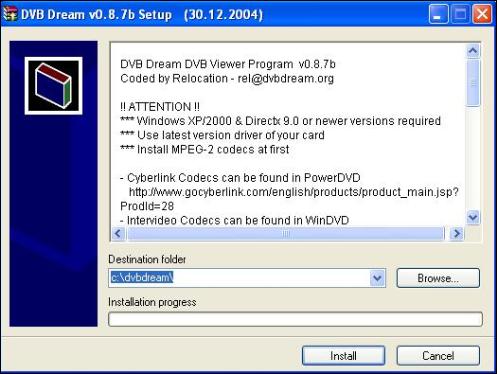
After clicking on the compressed archive, a window appears where you can choose the location where the program should be copied. By default it is set to c:/dvbdream. Inside the window there is information about the program version, requirements, that it works on Win XP/2000 with at least DirectX 9.0, that you need to have an installed MPEG‑2 codec and the newest drivers for SS2, etc...

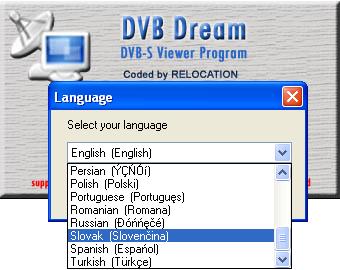
Next, a “language” window pops up, where you can choose from many languages. I think Slovak or Czech is enough, but if someone wants to improve their English, like me, they can easily stay with that language.
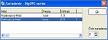
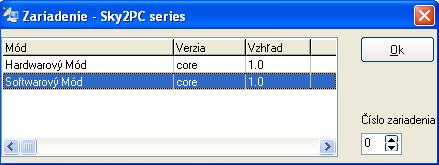
In the next window you can choose between 2 modes – hardware and software (I think the hardware mode is used by the SS1 card) and for SS2 only the software mode works. So leave software selected, click OK and continue.
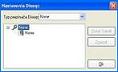
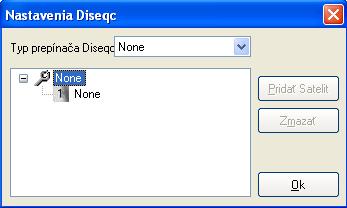
DiSeqC settings are used for configuring converters from multiple satellites. If you have more than one converter, choose how many you have (I never used this because I have only one converter). If not, leave “none”, click on “1 none” in the window and then add a satellite.

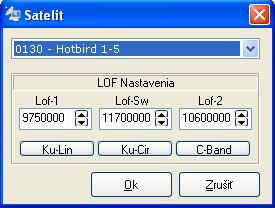
In the satellite window choose a satellite (preferably the one you are tuned to). Leave the LOF settings as they are (I’m not completely sure now, but I think we watch TV in the C‑band (I’m already a bit confused by these letters, not only regarding DVB) and for another band, i.e. KU, we would need a different converter (LNB), which does not use H and V polarization, but left‑hand and right‑hand circular polarization.

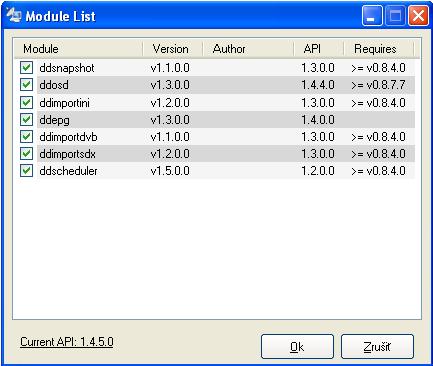
In the Module list window you can see which modules are already built into the program. For example EPG (electronic program guide), scheduler, or OSD (On Screen Display), SDX channel import, which you can import from this page, etc... You can add modules to the program later, into the Modules directory, simply copy them there (they must have the .mod extension) and they are usually available on the official website.

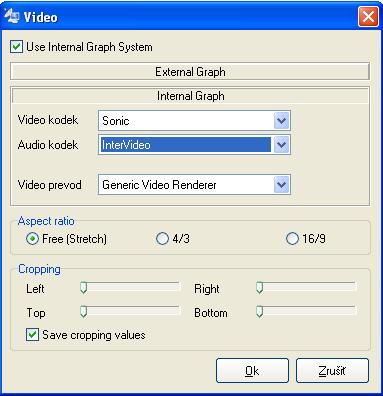
The next window is video. At the very top is the option “Use Internal Graph System”. If you leave it checked, you can choose only the graph that is already preset in the software. If you uncheck it, you can choose an external graph from anywhere. So choose audio, video codec and video renderer (leave as is). Aspect Ratio probably doesn’t need explanation, and cropping lets you set trimming of the image from top, bottom, right and left. By checking the box you save the value. (I never used this, just tried it once to test functionality).

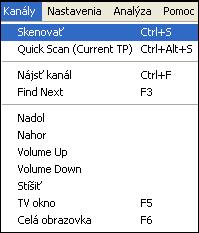
That was the last step in the program setup. Now DVBDream is open, of course you see only a black screen, but that’s normal. Make sure you are tuned to some satellite, for example Hot Bird 13°E, and in the top menu click on Channels → Scan, or simply press the hotkey CTRL+S, as shown in the picture.

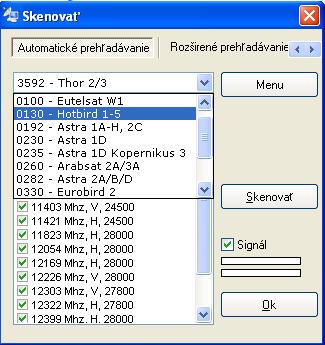
In the window choose for example 0130 – Hot Bird 1–5 (I keep mentioning this satellite because I use it the most for watching TV). On the right is the button menu, where you can mark or unmark all transponders, etc... There is also an option for advanced and manual scanning (where you enter parameters manually, very laborious). We will stay with the first automatic scanning. So leave all transponders checked and start scanning.
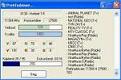
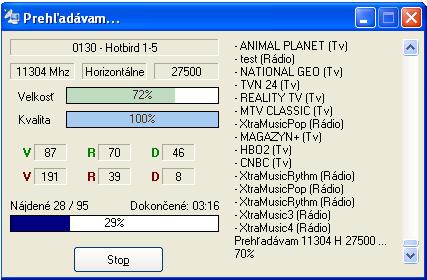
In this window everything is nicely listed: satellite, frequency of the current transponder, polarization, S/R symbol rate, speed and signal status indicators V, R, D, Video, Radio and Data channels: green – free and red – encrypted. On the right side the found channels are displayed.
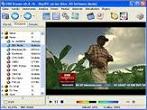
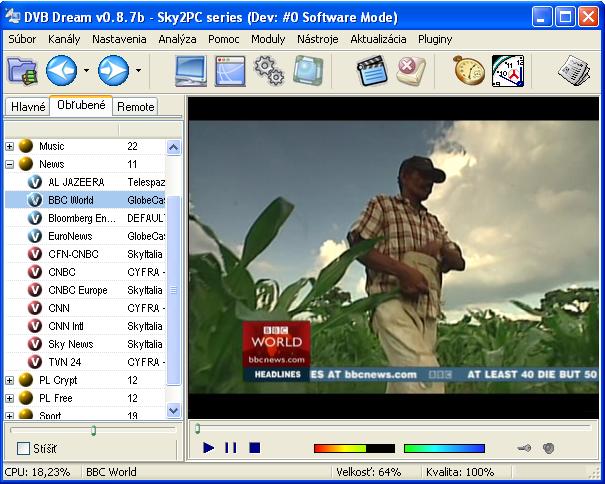
After scanning finishes, save everything and you can watch TV or listen to radio. That would be roughly everything about installing the program. Maybe someday I’ll manage to write an article about controlling this great program (if some SS2 user helped, I would be grateful). And I also forgot to mention that to watch TV you need an MPEG‑2 codec, which you can download for example from my download.
Official website: www.dvbdream.org