










Function canceled
Function canceled


 Lyngsat
Kingofsat
Dishpointer
DVBSkystar.com
satbeams.com
CS Sat fórrum
Parabola
DVB-Upload
DVB N Forum
dvhk.pl
sat-television
Sat Centrum
SkyStar.org
TV Freak
Technisat
techneteuweb
Jak psat web
Jak na web
Zive.cz
Interval
O webu
Webguru
Builder.cz
Linuxsoft.cz
Tutorials.cz
web.net-mag.cz
Kosek.cz
webtvorba.cz
CSS Creator
samples.cz
programujte.com
builder.cz
časopis.programátor
učebnica c++
Odkiaľ je IP
Uč sa Anglicky
Speedtest
Otestujte sa
Lyngsat
Kingofsat
Dishpointer
DVBSkystar.com
satbeams.com
CS Sat fórrum
Parabola
DVB-Upload
DVB N Forum
dvhk.pl
sat-television
Sat Centrum
SkyStar.org
TV Freak
Technisat
techneteuweb
Jak psat web
Jak na web
Zive.cz
Interval
O webu
Webguru
Builder.cz
Linuxsoft.cz
Tutorials.cz
web.net-mag.cz
Kosek.cz
webtvorba.cz
CSS Creator
samples.cz
programujte.com
builder.cz
časopis.programátor
učebnica c++
Odkiaľ je IP
Uč sa Anglicky
Speedtest
Otestujte sa

Casablanca
Casablanca is an online data downloader, specifically a downloader of internet pages. Sometimes the service “rec sat@Once” also worked — it was a service that sent files via satellite, but I don’t know if it still works. The internet pages that arrive are not necessarily the ones we want, but the ones that received the most votes. This means that if you frequently vote for http://jany.wz.cz, that page will also be sent.
Installation is very simple. Just run setup.exe, click through all the “Next”, “Yes”, and “Finish” buttons, and Casablanca is installed. If we paid attention during installation, we know that Casa was installed into c:/Program Files/SES/, but the executable icon is also placed in the quick launch bar.

Make sure your dish is pointed at Astra 19E. In the system tray, right‑click the satellite icon (red or green) and find the service Sat@Once:: Astra 19.2 E — select it, and then you can also launch Casablanca (“Casa”).

For me, it started downloading data immediately. If you don’t know whether Casa is downloading or not, you can check the tray icon — you should see a green chameleon catching a fly (see image). If the chameleon is yellow, it is waiting. When you hover over it with the mouse, a bubble should appear showing the status, which page is being downloaded, and what percentage is completed.

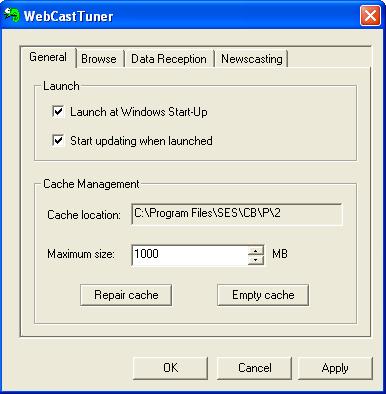
Right‑click the chameleon and a menu appears with items: Portal, Update cache, Vote, Options, About, and Exit. Click Options and configure the program. On the first tab “General” you can enable “run at Windows startup” — I prefer not to. Next is the path to the cache where files will be stored, the option to set cache size (I recommend setting more — at least 3 GB or more), and two buttons: repair and delete cache. Other parameters in Options can be left as they are — click OK.
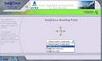
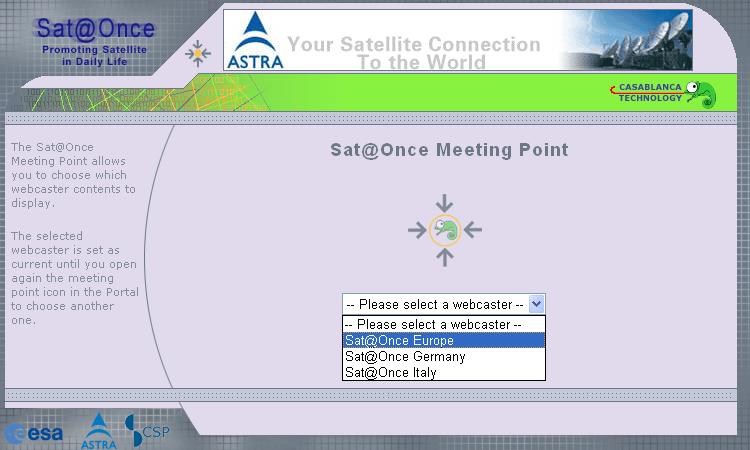
If the Update cache item in the menu is checked, downloading is enabled. If you want to pause downloading, uncheck it. Now you can open the first menu item — Portal. There are three options; I selected “Sat@Once Europe”.

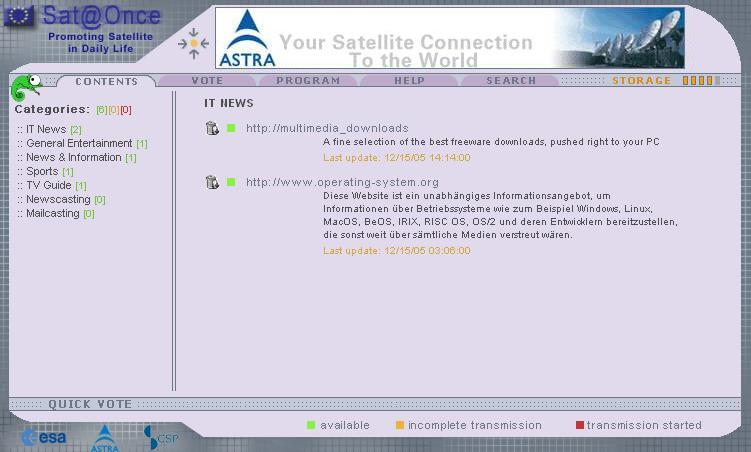
In the Portal, there are several tabs: Content — on the left are categories: Webcasting, Newscasting, and Mailcasting (initially empty). Over time they begin to fill, and on the right side you will see downloaded pages that you can browse — but only the green ones. Red ones are currently downloading, and orange ones are incomplete. You browse pages by clicking the link with a green square, or by typing the address into your browser (e.g., Internet Explorer). In Internet Explorer settings, you must enable “Never dial a connection”. I don’t know exactly how deep the link structure is downloaded. In the next tab, Vote, you can vote. The next tab, Program, only shows what will be transmitted and when. I probably don’t need to explain the Help and Search tabs.

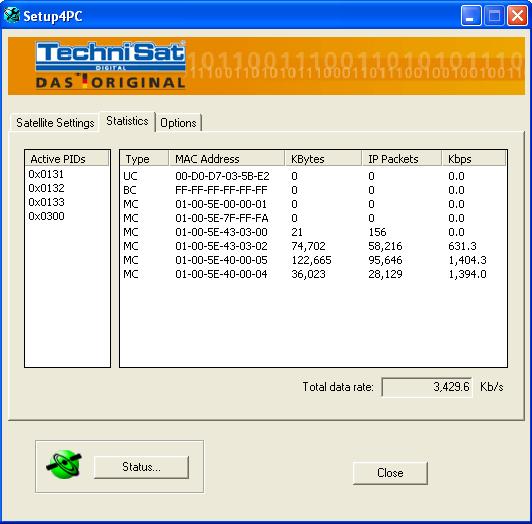
One more interesting thing for checking whether data is downloading at all: Right‑click the satellite icon in the tray and select Setup4PC. At the top, select the Statistics tab — if you see the numbers moving (as in the image), you can be sure data is downloading. In my screenshot, you can see the speed is quite good — 3.5 MB. You can find Casablanca in the Download section. That should be everything. If you have questions, write them in the forum.